MyFormatConverter Review 2026: One Tool to Make Videos and Music Play Anywhere
A media converter from Engelmann Software that turns videos, music and TV recordings into the right format for your phone, tablet, TV or car radio — with device profiles, batch conversion and disc burning. $29.99 one-time with a 60-day money-back guarantee.
Our verdict
The easy answer to “this file won’t play”
media converter
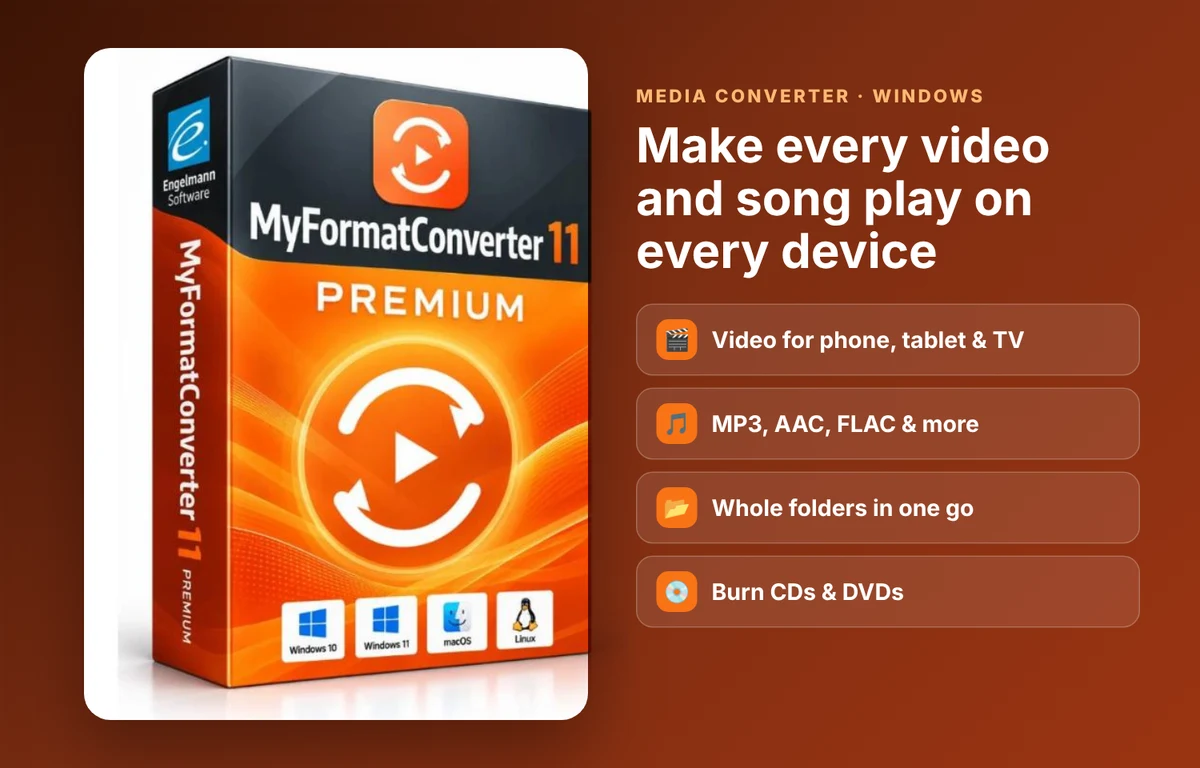
MyFormatConverter, from the German publisher Engelmann Software, solves one everyday problem very well: a video or song that will not play on the device you want. You pick a tool, add files — or a whole folder — and choose a target such as iPhone, Android, Smart TV, car radio or DVD; the device profile sets the format, codec and quality for you. Beyond conversion it rips and burns CDs and DVDs, repairs TV-receiver recordings, trims clips, swaps soundtracks and makes slideshows, and the Premium edition adds video optimisation, logo removal, blurring and 2D-to-3D. Everything runs locally on your PC, it is a one-time purchase, and the 60-day money-back guarantee makes it a low-risk try.
What we like
- Device profiles do the thinking. Choose “iPhone” or “Smart TV” instead of guessing codecs and bitrates.
- Handles almost any file. Opens MP4, MKV, MOV, AVI, WMV, FLV, TV recordings, MP3, FLAC, WMA and many more.
- Whole folders at once. Batch conversion keeps your folder structure — ideal for a music or video collection.
- More than a converter. CD ripping, disc burning, trimming, new soundtracks and photo slideshows in one program.
- Private by design. Files are converted on your own PC; nothing is uploaded to a cloud.
- Pay once, safe purchase. $29.99 once from an established German publisher, with a 60-day money-back guarantee.
Good to know
- Check the version you get. The Digistore24 order form lists Windows 7–11; the publisher’s current release is version 11 (Windows 10/11 64-bit). Your download page shows which one you get.
- No copy-protected discs. Protected DVDs and Blu-rays cannot be converted, for legal reasons — your own recordings and unprotected files are fine.
- AI upscaling needs a decent GPU. In version 11, upscaling runs on Vulkan-capable graphics; older chips work but are much slower.
- Quality can’t be invented. Converting a small, blurry video to 4K makes it bigger, not truly sharper.
What’s inside
Convert, improve, edit and burn
These are the tools Engelmann describes for MyFormatConverter Premium. Tools marked “v11” are in the current version 11.
Convert
- Convert videoMP4, MKV, MOV, AVI, WebM; H.264, HEVC, AV1
- Convert audioMP3, AAC, FLAC, WAV, OGG, Opus; CD ripping
- Device profilesiPhone, iPad, Android, Smart TV, car radio, DVD
- Batch foldersWhole folders and drives, structure kept
Improve
- Optimise videoDenoise, deflicker, colour, smaller files
- TV recordingsRepairs receiver files (TS, REC, PVR)
- AI upscaling (v11)Double size, Full HD, 4K or 8K
- Smoother motion (v11)Doubles the frame rate, e.g. 25 → 50 fps
Edit & burn
- Trim & soundtrackCut start/end, remove or replace audio
- Logos & blurringRemove channel logos, blur faces, add a watermark
- 2D → 3D & slideshowsFor 3D TVs; photos + music into a movie
- Burn discsAudio CDs, video DVDs with menus, data discs
How it works
From “won’t play” to “plays everywhere” in four steps
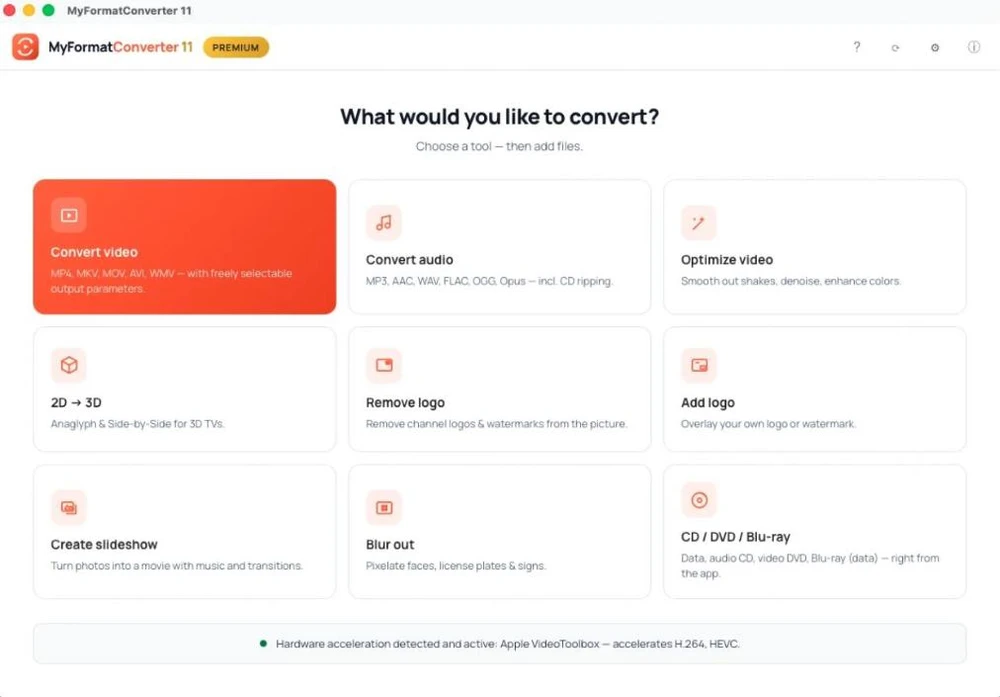
Pick a tool on the start screen
Convert video, convert audio, optimise video, 2D → 3D, logos, slideshow, blurring or disc burning — each is one tile on the start screen.
Add files or a whole folder
Drag in single files, or add a folder or drive — batch conversion keeps the folder structure, so a whole music or video collection converts in one go.
Choose where it should play
Pick a device profile — iPhone, Android, Smart TV, car radio, DVD — or set format, codec, resolution and frame rate yourself.
Start and copy to your device
Click start; hardware acceleration speeds things up and the remaining time is shown. Copy the finished files to your phone, USB stick or TV.
Pricing
One payment, no subscription
MyFormatConverter Premium is a one-time purchase through Digistore24. You get the download right after paying and your serial number by e-mail. Price as shown on the order form in US dollars.
MyFormatConverter Premium
$29.99 one-time
The full Premium edition as a Windows download.
- All conversion, editing and burning tools
- Device profiles and batch conversion
- Serial number by e-mail, downloads for 3 months
- 60-day money-back guarantee
Optional extras at checkout
+$8.74 from
Not needed to use the program.
- Premium Support (2 years): +$8.74 — your e-mails answered first
- Backup DVD by post: +$15.30 — a physical copy of the installer
- Both covered by the 60-day guarantee
Sales tax or VAT is added at checkout where it applies, and the price may be shown in your local currency. Download products can be downloaded up to 5 times within 3 months of payment, so save the installer.
Setup guide
Installing and using MyFormatConverter
Installation takes a few minutes. Then convert one real file to the device you care about most — that is the quickest way to see if it fits.
Buy the download and keep your e-mails
Check out on Digistore24 ($29.99 one-time). You land on the download page straight away, and your serial number arrives by e-mail.
- Keep the Digistore24 order e-mail — it has your download link and the refund link for the 60-day guarantee.
- Downloads work up to 5 times within 3 months, so save the installer somewhere safe.
Install the program
Save your work and close open programs. Then double-click the downloaded installer and follow the steps.
- Check the version number on the download page and in the installer, so you know which features you have.
Enter your serial number
Start MyFormatConverter from the Start menu or the desktop icon and enter the serial number from your e-mail when asked. The Premium tools are then unlocked.
💡 Copy and paste the serial number to avoid typing mistakes.
Choose a tool
On the start screen pick what you want to do: Convert video, Convert audio, Optimise video, 2D → 3D, Remove/Add logo, Blur out, Create slideshow or CD / DVD / Blu-ray.
Add files or a folder
Drag files into the window, or add a whole folder or drive for batch conversion — the folder structure is kept.
- TV-receiver recordings (TS, REC, PVR) are recognised and can be repaired while converting.
- Copy-protected DVDs and Blu-rays cannot be added.
Pick the device profile
Choose where the file should play — iPhone/iPad, Android, Smart TV, car radio / USB stick, website, archive or DVD — or set format, codec, resolution and frame rate yourself.
- Not sure? Use our format finder above.
- Trim the start and end, or swap the soundtrack, before you start if you need to.
Start and watch the progress
Click start. Hardware acceleration is used when your graphics chip supports it, and the remaining time is shown.
- In version 11 you can switch between background, balanced and full performance while it runs.
- For AI upscaling (v11) a short test run first estimates how long it will take.
Copy the result to your device
Open the output folder and copy the files to your phone, USB stick, TV or car radio stick — or burn them to a disc with the CD / DVD / Blu-ray tool.
- Test one file on the device before converting a whole collection.
- If it is not for you, request your refund within 60 days.
Three everyday jobs, step by step
These are the jobs most people buy a converter for. Each takes only a few clicks.
Videos for the TV
- Choose Convert video and add the files or folder.
- Pick the Smart TV profile (1080p, or 4K for a 4K TV).
- Copy the MP4 files to a USB stick and plug it into the TV.
Older TVs prefer H.264 in MP4.
Music for the car
- Choose Convert audio and add your music folder.
- Pick MP3 at 192–320 kbit/s (car radio / USB stick profile).
- Copy the folders to a USB stick — many radios need FAT32.
Folder structure is kept, so albums stay together.
CDs onto your PC or phone
- Insert the audio CD and choose Convert audio.
- Pick FLAC to archive in full quality, or MP3/AAC for your phone.
- Start ripping; repeat for the next CD.
For your own CDs.
Six things worth knowing
Profiles first
Start with a device profile; change settings only if you need to.
Batch saves time
Add a whole folder — the structure is kept.
H.264 plays everywhere
HEVC saves space but older devices may not play it.
Test one file
Check one converted file on the device before doing hundreds.
No protected discs
Copy-protected DVDs and Blu-rays cannot be converted.
Runs locally
Your files stay on your PC — no cloud upload.
Your setup checklist
Free calculators
Format tools you can use right now
Find the right format for your device, see how big a converted video will be, and plan how much music fits on your phone or USB stick.
Which format for my device?
Pick where the video or music will play. We show the settings that play almost everywhere — the same choices MyFormatConverter’s device profiles make for you.
Video file size calculator
Lower the bitrate or resolution and the file gets smaller. See how big your converted video will be and how many fit on your phone.
Music library planner
How many songs fit on your phone, USB stick or car radio stick in each audio format?
| Format | Best for | Size per song | Songs that fit |
|---|
Sizes are estimates from the bitrate. FLAC (lossless) varies with the music, roughly 900 kbit/s on average.
Quick check
Is MyFormatConverter right for you?
Answer 5 quick questions.
Do you have videos or music that won’t play on your phone, TV or car radio?
Do you use a Windows PC?
Would converting whole folders at once save you time?
Do you want to rip or burn CDs and DVDs too?
Do you need to copy protected, store-bought DVDs or Blu-rays?
Also consider
Other tools from our PC Utilities & Media guide that suit different needs.
How to try it
Try MyFormatConverter risk-free in 4 steps
FAQ
MyFormatConverter questions answered
What is MyFormatConverter?
It is a media converter from Engelmann Software. It converts videos, music and TV recordings into formats your phone, tablet, TV, car radio or DVD player can play, and it can also rip and burn CDs and DVDs and make slideshows.
Which formats does it support?
According to the publisher it opens MP4, M4V, MKV, MOV, AVI, WMV, WebM, FLV, MPEG, VOB without copy protection, TS and many receiver recordings, plus MP3, AAC, FLAC, WAV, OGG, Opus, WMA and more. It saves to MP4, MKV, MOV, AVI, WebM and MPEG video and MP3, AAC, Opus, FLAC, WAV and other audio formats.
Does it have device profiles?
Yes. There are ready-made profiles for iPhone, iPad, Apple TV, Android, smart TVs and car radios or USB sticks, and you can also set format, codec, resolution and frame rate yourself.
Can it convert many files at once?
Yes. You can add whole folders or drives, and the folder structure is kept in the output.
Can it copy DVDs or Blu-rays?
Not copy-protected ones — those cannot be converted for legal reasons. Unprotected VOB files and your own recordings are fine, and it can burn video DVDs, audio CDs and data discs.
Which Windows versions does it need?
The Digistore24 order form lists Windows 7, 8.1, 10 and 11. The publisher’s current version 11 needs Windows 10 or 11 (64-bit). Your download page shows which version you receive.
Does it upload my files?
No. According to the publisher, conversion runs locally on your computer, with no upload or cloud processing.
How much does it cost?
$29.99 one-time on Digistore24, plus tax where it applies. Premium Support and a backup DVD are optional extras at checkout.
Is there a subscription?
No. It is a one-time purchase.
Can I get a refund?
Yes. You have 60 days to request a full refund through the link in your Digistore24 order e-mail.
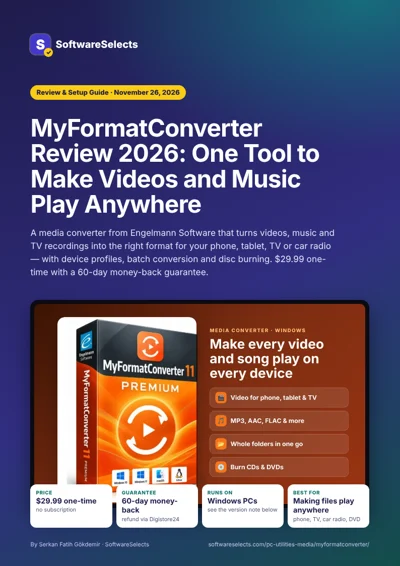
Free PDF
Download the MyFormatConverter review & setup guide
Everything on this page in a colourful, printable PDF: our verdict, every tool explained, the price, the full installation and conversion guide, step-by-step recipes for TV, car and CD, and a checklist.
- Verdict & all tools
- 8-step setup guide
- Recipes: TV, car, CDs
- Printable checklist
About this review
Who wrote it

Serkan Fatih Gökdemir
Founder and Editor, SoftwareSelects
Serkan builds websites, WordPress plugins and online calculator tools himself, so he looks at software the way a working user would. He has also worked for 15 years as a medical laboratory technician, with an education in chemistry, and brings the same habit of checking details carefully to every page: what a product actually does, what it costs, what the refund terms are and who it suits.
Sources: the Digistore24 order form, the Engelmann Software product pages and the MyFormatConverter website, and the heise Download listing, checked on November 26, 2026. The start-window screenshot is the publisher’s image of version 11.
Questions about MyFormatConverter?
Tell our assistant which files you have and where they should play. It will tell you whether MyFormatConverter fits and which profile to choose.
Details are based on the seller’s website and the Digistore24 listing as of November 26, 2026 and can change — always confirm the price and refund terms at checkout. SoftwareSelects may earn a commission from purchases made through our assistant’s links, at no extra cost to you. Affiliate disclosure
