SecuPerts Rescue Stick Review 2026: First Aid for a PC That Won’t Start
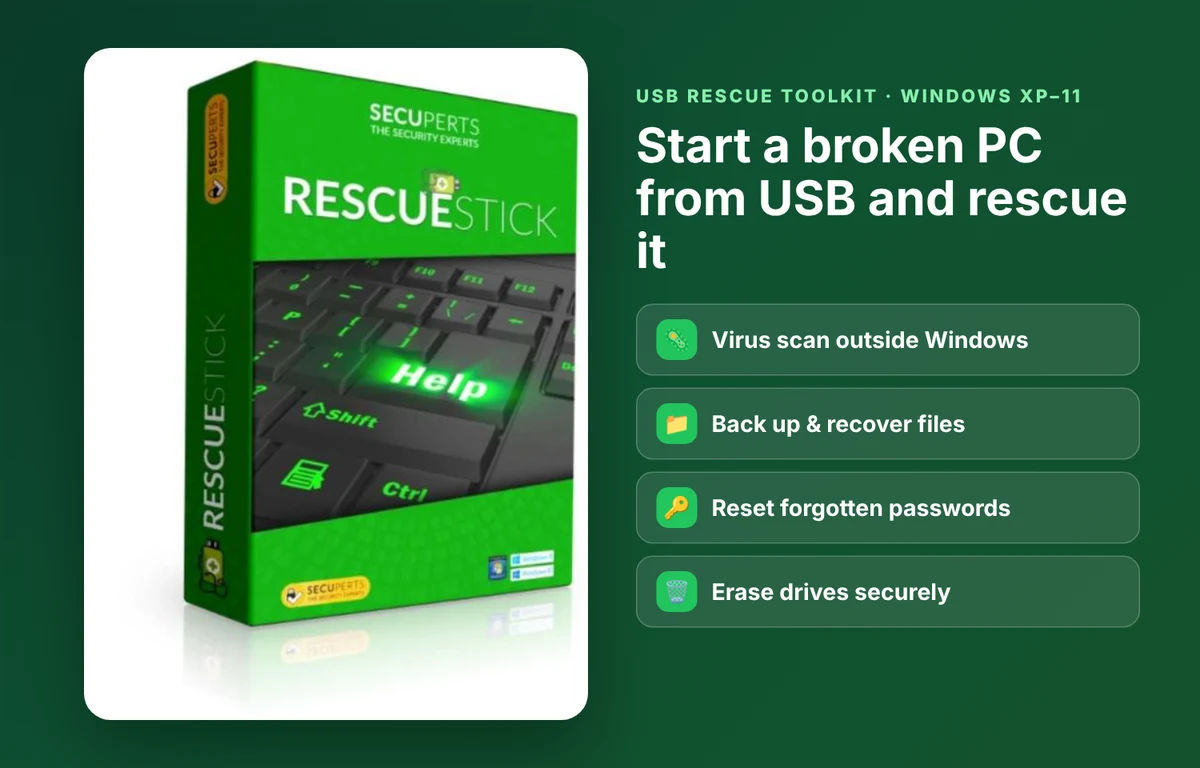
A USB emergency system from Engelmann Software that starts a broken or infected PC without Windows, so you can back up files, remove malware, recover deleted data, reset a password or erase a drive — $29.99 one-time with a 60-day money-back guarantee.
Our verdict
A sensible “first aid kit” to keep in the drawer
PC rescue
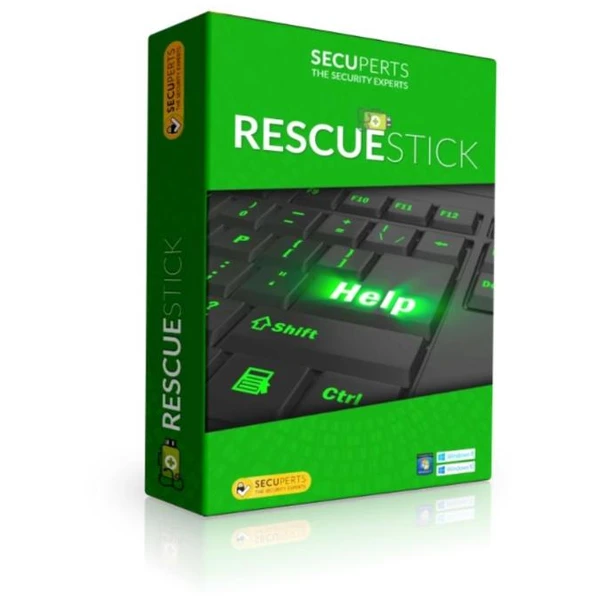
SecuPerts Rescue Stick, from the German publisher Engelmann Software (formerly sold as SecuPerts First Aid Kit), turns an ordinary USB stick into a small emergency system that starts without Windows. That is exactly what you need on the bad day: when Windows will not boot, when malware blocks the normal scanner, or when files are gone. From the stick you can copy your files to safety, scan with an Avira-based virus scanner, recover deleted files, copy a failing drive 1:1, reset a forgotten Windows password and securely erase a drive before you sell it — through a simple interface meant for non-experts. For $29.99 once, with a 60-day money-back guarantee, it is cheap insurance — and the best time to make the stick is before anything goes wrong.
What we like
- Works when Windows doesn’t. It starts its own system from USB, so a broken or infected Windows is not in the way.
- Your files first. Copy documents and photos to an external drive or over the network before you try any repair.
- Malware removal outside Windows. The Avira-based scanner runs while the malware is switched off.
- Recovery tools in one place. File and deep block-level recovery, shadow copies and a 1:1 drive copy.
- Made for beginners. A simple interface — no command line, no specialist knowledge.
- Small price, safe purchase. $29.99 once from an established German publisher, with a 60-day money-back guarantee.
Good to know
- Make it before you need it. You create the stick on a working PC; if your only PC is down, borrow one for ten minutes.
- USB stick not included. Use an empty stick of 16 GB or more — it is erased when the rescue system is written.
- Recovery is not magic. Badly overwritten or physically damaged data may not come back; keep regular backups.
- Not a Windows installer. It rescues files and fixes common problems; a deeply broken Windows may still need a reinstall.
What’s inside
Back up, clean, recover, reset and erase
Everything runs from the stick’s own Linux-based emergency system, with a simple menu instead of a command line. These are the tools Engelmann describes for SecuPerts Rescue Stick.
Save & recover
- File backupCopy files to an external drive or over the network
- File-level recoveryBring back deleted files on intact file systems
- Shadow copiesRestore files from hidden Windows shadow copies
- Block-level recoveryFor damaged or quick-formatted drives
Clean & repair
- Virus scannerAvira-based scan outside Windows
- Registry editorUndo settings that stop Windows working
- Drive healthHealth status of hard drives and SSDs
- 1:1 drive copyMove a failing drive to a new one
Access & privacy
- Password resetFor forgotten local Windows passwords
- Network sharingCopy files from the broken PC to another PC or Mac
- Secure eraseWipe a drive before you sell or recycle it
- Emergency desktopSimple apps to keep working in a pinch
How it works
From a dead PC to your files in safety
Make the stick on a working PC
Download the program, unzip it and run the included USB installer. It writes the emergency system to an empty USB stick and gives you a ready-to-use rescue stick.
Start the problem PC from USB
Plug the stick into the PC that will not start, switch it on and tap the boot menu key (F12, F11, Esc… — use our key finder). Choose the USB stick and the emergency system starts instead of Windows.
Save your files first
Before any repair, copy documents, photos and other important files to an external drive or to another PC over the network.
Fix the problem
Run the virus scanner, recover deleted files, reset a password or copy a failing drive — then remove the stick and start Windows normally.
Pricing
One payment, no subscription
The download version is a one-time purchase through Digistore24. You get the download link right after paying and the serial number by e-mail. Price as shown on the order form in US dollars.
Rescue Stick Download
$29.99 one-time
The full rescue system to write to your own USB stick.
- Backup, virus scan, recovery, password reset, secure erase
- Works with Windows XP to 11 and Linux PCs
- Serial number by e-mail, downloads for 3 months
- 60-day money-back guarantee
Premium Support (optional)
+$8.74 add-on
Offered on the order form; not needed to use the stick.
- Your requests go to the top of the support queue
- Valid for two years from purchase
- Separate e-mail address for faster answers
- Covered by the 60-day guarantee
Sales tax or VAT is added at checkout where it applies, and the price may be shown in your local currency. The USB stick is not included. Download products can be downloaded up to 5 times within 3 months of payment, so save the installer.
Setup guide
Making and using your SecuPerts Rescue Stick
Create the stick on a working Windows PC — ideally today, before you need it. It takes about 15–30 minutes, most of it waiting while the files are written.
Buy the download and keep your e-mails
Check out on Digistore24 ($29.99 one-time). You land on the download page straight away, and your serial number arrives by e-mail.
- Keep the Digistore24 order e-mail — it holds your download link and the refund link for the 60-day guarantee.
- The download can be used up to 5 times within 3 months, so save the ZIP file somewhere safe.
💡 Your PC already broken? Do steps 1–5 on any working Windows PC — a friend’s or family member’s is fine.
Get an empty USB stick
Use a USB stick of 16 GB or more. A USB 3.0 stick makes writing and starting much faster.
- Everything on the stick will be erased — copy anything on it somewhere else first.
- Label the stick “Rescue” so nobody reuses it by mistake.
Unzip the download
Right-click the downloaded ZIP file → Extract All… and open the extracted folder. Do not run the files from inside the ZIP.
Run the USB installer
In the extracted folder start the program for installing to USB (the folder also has one for burning a DVD). Select your USB stick — check the drive letter and size carefully — and start.
- Enter your serial number if you are asked for it.
- Wait until the program says it is finished — writing about 5 GB can take a while on a USB 2.0 stick.
- Eject the stick safely before you pull it out.
Test the stick once
Start your working PC from the stick (step 6) to make sure it boots. Then take it out, restart Windows and put the stick in a safe place.
- A tested stick in a drawer is worth far more than an untested one on the day something breaks.
Start the problem PC from USB
Plug the stick into the PC that will not start, switch it on and tap the boot menu key straight away — F12 on Dell, Lenovo, Acer and Toshiba, F11 on MSI and ASRock, Esc then F9 on HP (see the key finder above). Choose the USB stick.
- If Windows still starts, you can also choose Settings → System → Recovery → Advanced startup → Use a device.
- If the PC ignores the stick, open the BIOS/UEFI setup and put USB first in the boot order; some PCs also need Secure Boot switched off temporarily — follow your PC maker’s guide and switch it back on afterwards.
Save your files before anything else
When the emergency system has started, use the backup tool to copy your important folders to an external drive, or turn on network sharing and copy them from another PC or Mac.
- Copy to a different drive than the one you are rescuing.
- Use the rescue time estimator above to plan large copies.
Repair, then restart normally
Now run the tool for your problem: virus scan of all drives, file recovery, password reset, drive health and 1:1 drive copy, or secure erase. When you are done, shut down, remove the stick and start Windows.
- If Windows still will not start after the repairs, your files are already safe — a Windows reset or reinstall is now stress-free.
- If the stick is not for you, request your refund within 60 days.
Which tool for which emergency
The emergency system groups its tools by job. Start with the card that matches your problem.
Windows won’t start
- Start from the stick.
- Copy your files to an external drive with the backup tool.
- Check drive health; use the registry editor or reinstall Windows once your files are safe.
Back up first — always.
Virus or malware
- Start from the stick so the malware is not running.
- Connect to the internet if you can, so the scanner is up to date.
- Scan all internal drives, then restart Windows and check it.
Avira-based scanner, outside Windows.
Lost files or failing drive
- Stop using the affected drive.
- Try file-level recovery and shadow copies, then block-level recovery.
- For a failing drive, make a 1:1 copy to a new drive first.
Save recovered files to a different drive.
Six things worth knowing
Make it in advance
Create and test the stick while your PC works — it takes minutes.
16 GB or more
The rescue system takes about 5 GB; the stick is erased when it is written.
Boot menu key
Tap it from the moment you press power: F12, F11, F8 or Esc on most PCs.
Files first
Copy your data to safety before any repair or reinstall.
Different target drive
Never recover files to the drive you are recovering from.
Microsoft account
Its password is reset online, not with the stick.
Your setup checklist
Free calculators
Rescue tools you can use right now
Find the key that opens your PC’s boot menu, see which rescue tool fits your problem and estimate how long saving your files will take.
Boot menu key finder
To start a PC from the Rescue Stick you press a key right after switching it on. Pick your PC maker to see the usual keys.
These are the usual keys; some models differ, so check the start-up screen or your manual. Tap the key repeatedly from the moment you press the power button.
Which rescue tool do I need?
Choose what happened. We show which part of the Rescue Stick to use and what to do first.
Rescue time estimator
How long will it take to copy your files to a USB drive or another PC? Real speeds vary with the drive and the files; this gives a realistic range.
Quick check
Is SecuPerts Rescue Stick right for you?
Answer 5 quick questions.
Do you use a Windows PC or laptop?
Would you lose important files if your PC stopped starting tomorrow?
Do you want to deal with viruses or a broken Windows yourself, without a repair shop?
Do you have (or can buy) an empty USB stick of 16 GB or more?
Do you only use a Mac or a Chromebook?
Also consider
Other tools from our PC Utilities & Media guide that suit different needs.

How to try it
Try SecuPerts Rescue Stick risk-free in 4 steps
FAQ
SecuPerts Rescue Stick questions answered
What is SecuPerts Rescue Stick?
It is a USB emergency system from Engelmann Software (formerly SecuPerts First Aid Kit). You write it to a USB stick, start a broken or infected PC from it and use its tools to back up files, remove malware, recover data, reset a password or erase a drive.
Is the USB stick included?
No. The download version is software only; you need an empty USB stick of at least 16 GB. Everything on the stick is erased when the rescue system is written to it.
Which computers does it work with?
PCs with Windows XP, 7, 8, 10 or 11, and Linux PCs, according to the seller. It is not made for Macs or Chromebooks.
How do I start my PC from the stick?
Plug it in, switch the PC on and tap the boot menu key — often F12, F11, F8 or Esc depending on the maker — then choose the USB stick. Our boot menu key finder shows the usual key for your brand.
Can it remove viruses?
Yes. It includes a virus scanner based on Avira technology that runs from the stick, so malware that blocks the Windows scanner is not active while you scan.
Can it recover deleted files?
It has file-level recovery, recovery from Windows shadow copies and a deeper block-level recovery for damaged or quick-formatted drives. Recovery does not always succeed, especially if data has been overwritten, so stop using the drive straight away.
Can it reset a forgotten Windows password?
It includes a password reset tool for local Windows accounts. If you sign in with a Microsoft account, reset that password online with Microsoft.
How much does it cost?
$29.99 one-time for the download version on Digistore24, plus tax where it applies. An optional two-year Premium Support add-on is offered at checkout.
Do I need to make the stick before something goes wrong?
It is best to. You create the stick on a working Windows PC. If your only PC is broken, you can make it on a friend’s or family member’s PC.
Can I get a refund?
Yes. You have 60 days to request a full refund through the link in your Digistore24 order e-mail.
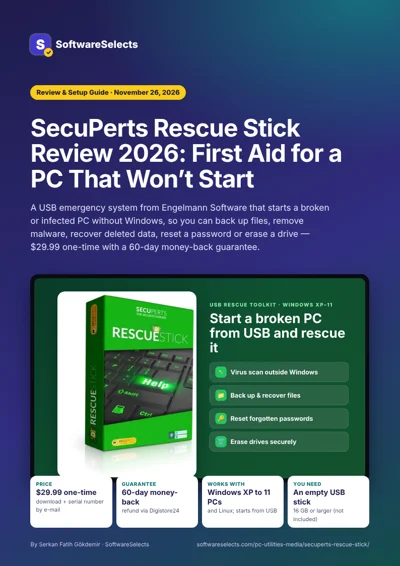
Free PDF
Download the SecuPerts Rescue Stick review & setup guide
Everything on this page in a colourful, printable PDF: our verdict, every rescue tool explained, the price, the full guide to making and using the stick, an emergency plan for each problem and a checklist — print it and keep it with the stick.
- Verdict & all tools
- 8-step setup & boot guide
- Emergency plan per problem
- Printable checklist
About this review
Who wrote it

Serkan Fatih Gökdemir
Founder and Editor, SoftwareSelects
Serkan builds websites, WordPress plugins and online calculator tools himself, so he looks at software the way a working user would. He has also worked for 15 years as a medical laboratory technician, with an education in chemistry, and brings the same habit of checking details carefully to every page: what a product actually does, what it costs, what the refund terms are and who it suits.
Sources: the Digistore24 order form and Engelmann Software product pages and article for SecuPerts Rescue Stick, and the heise Download listing, checked on November 26, 2026. Boot keys are the usual defaults of each PC maker.
Questions about SecuPerts Rescue Stick?
Tell our assistant what happened to your PC. It will tell you whether the Rescue Stick can help and walk you through making and using the stick.
Details are based on the seller’s website and the Digistore24 listing as of November 26, 2026 and can change — always confirm the price and refund terms at checkout. SoftwareSelects may earn a commission from purchases made through our assistant’s links, at no extra cost to you. Affiliate disclosure
