OnlineTV 20 Review 2026: Free-to-Air TV and Radio From Around the World on Your PC
Windows software from Engelmann Software — “the original since 2002” — that brings 100+ TV channels from 8 countries, 1,000+ radio stations, media libraries, webcams and a 7-day TV guide to your PC, with recording and an Android app. $29.99 one-time with a 60-day money-back guarantee.
Our verdict
A simple way to put TV and radio on your computer
PC TV
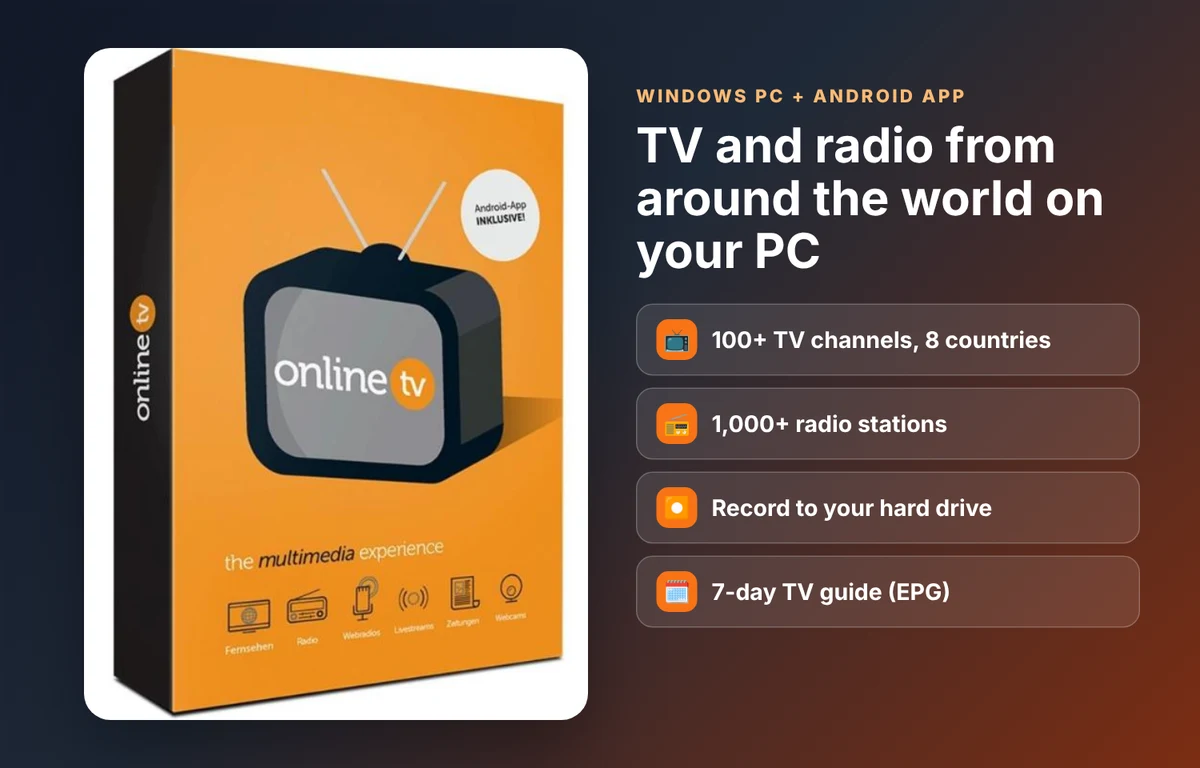
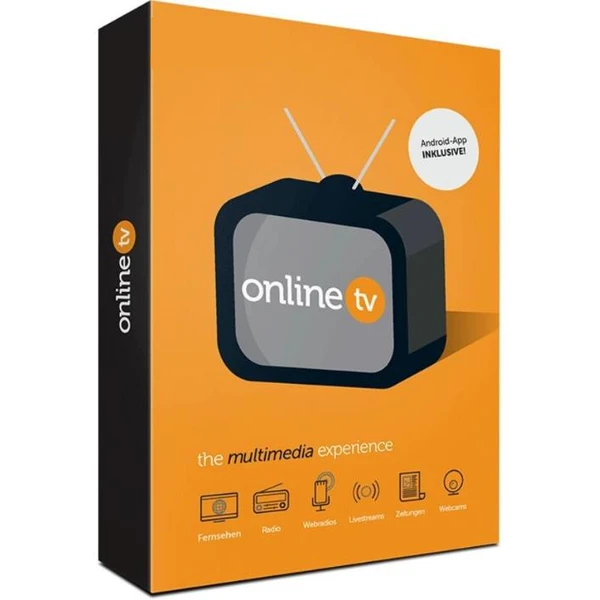
OnlineTV has been around since 2002 and does one thing in a friendly way: it gathers freely available TV and radio streams in one program, so you can watch and listen on your PC without a TV card, a receiver or a subscription. Version 20 lists 100+ TV channels from 8 countries (including German, US, UK, French, Austrian, Swiss and Italian channels), 1,000+ radio stations from 80+ countries plus 3,000+ online radios, a 7-day programme guide, media-library content, music videos and webcams. You can record to your hard drive, and an Android app (also for Fire TV Stick) is included. Streams come from the broadcasters, so channel line-ups can change — but for $29.99 once, with a 60-day money-back guarantee, it is an easy and low-risk way to turn a laptop into a TV and radio.
What we like
- Pay once, watch for years. No subscription and no follow-up costs, according to the publisher.
- Lots of radio. 1,000+ radio stations from 80+ countries plus 3,000+ online radios.
- A real TV guide. Programme guide (EPG) with a preview for the next 7 days.
- Record what you like. Save shows and radio to your hard drive.
- PC and Android. Android app included, now also for the Amazon Fire TV Stick.
- Established and safe. From a German publisher since 2002, with a 60-day money-back guarantee.
Good to know
- It uses free public streams. Channels depend on broadcasters’ own streams, so the line-up can change and some may not be available where you are.
- Not for paid sports or premium channels. Pay-TV and premium content are not part of free-to-air streams.
- A short delay is normal. Internet streams can run up to about 100 seconds behind the broadcast.
- No Mac or iPhone version. OnlineTV 20 runs on Windows and Android; the publisher’s newer annual-licence OnlineTV covers more systems.
What’s inside
TV, radio and more in one program
These are the features Engelmann lists for OnlineTV 20 and the updates that came with versions 18 and 19.
Watch & listen
- 100+ TV channels8 countries, e.g. ARD, ZDF, ORF, NBC, CBS, BBC
- 1,000+ radio stations80+ countries, plus 3,000+ online radios
- Media librariesOn-demand content from broadcasters, with subtitles
- Music videos & webcamsPlus live streams and newspapers
Plan & record
- 7-day TV guide (EPG)See what’s on and coming up
- Video recorderRecord to your hard drive
- Start pageCurrent shows and recommendations
- Full screenDouble-click for true full screen
Devices
- Windows 7 to 1132- and 64-bit
- Android appAndroid 5.0+, ARMv7; 64-bit support
- Fire TV StickCompatible since version 20
- No TV card neededJust an internet connection
How it works
From download to TV on your screen
Install and activate
Download OnlineTV 20 right after purchase, install it on your Windows PC and enter the serial number from your e-mail.
Pick a channel or station
Browse TV channels with preview images, or switch to radio and online radio. Use “Click here for more channels” to see the full list and save favourites.
Check the TV guide
Open the programme guide to see what is on now and over the next 7 days, or browse media-library content to watch later.
Record or take it with you
Record a show or radio programme to your hard drive, or connect the Android app to watch on your phone, tablet or Fire TV Stick.
Pricing
One payment, no subscription
OnlineTV 20 is a one-time purchase through Digistore24. You get the download straight away and your serial number by e-mail. Prices from the order form in US dollars.
OnlineTV 20
$29.99 one-time
Windows software with the Android app.
- 100+ TV channels, 1,000+ radio stations
- 7-day TV guide and recorder
- Android app incl. Fire TV Stick
- Downloads for 3 months, serial by e-mail
- 60-day money-back guarantee
Optional extras at checkout
+$8.74 from
Not needed to use the program.
- Premium Support (2 years): +$8.74 — your e-mails answered first
- Backup DVD by post: +$15.30
- Both covered by the 60-day guarantee
Sales tax or VAT is added at checkout where it applies, and the price may be shown in your local currency. The publisher’s newer OnlineTV (without a version number) is sold separately on its own website with annual licences.
Setup guide
Installing and setting up OnlineTV 20
Installation takes a few minutes. The Android app needs one extra step on your PC first.
Buy and download
Check out on Digistore24 ($29.99 one-time). You land on the download page straight away, and your serial number arrives by e-mail.
- Keep the Digistore24 order e-mail — it has the download and refund links.
- Downloads work up to 5 times within 3 months; save the installer.
Install on Windows
Run the installer and follow the steps. OnlineTV 20 runs on Windows 7, 8, 8.1, 10 and 11 (32- and 64-bit).
- If your antivirus warns, check the installer’s digital signature (right-click → Properties → Digital Signatures) — the publisher calls such warnings false positives.
Activate with your serial
Start OnlineTV and enter the serial number from your e-mail. Copy and paste it to avoid typos.
Show all channels and set favourites
Open the TV menu and click “Click here for more channels” to see the full list. Save the channels and stations you use most as favourites.
Use the TV guide
Open the programme guide (EPG) to see what is on now and over the next 7 days; browse media libraries for shows to watch on demand.
- Double-click the picture for true full screen.
Set up recording
Open Recording Settings, choose the format and folder, then record a show or radio programme.
- No sound in recordings? Enable “Stereo Mix” under Windows recording devices and update your sound driver.
- Use the recording space calculator above to plan storage.
Connect the Android app
On your PC, register your e-mail under Settings → My Data and enable Android access under Connection Settings. Then install the Android app and sign in.
- Needs Android 5.0+ with an ARMv7 CPU (Intel not supported) and “installation from unknown sources” allowed.
- Also works on the Amazon Fire TV Stick.
Fix buffering if it happens
Update Windows, OnlineTV and your drivers; allow OnlineTV in your firewall (ports 80 and 1935 outgoing, 19350–65535 incoming UDP). Then decide within 60 days whether to keep it.
Three ways to use OnlineTV 20
Start with the use that matters most to you.
TV on your laptop
- Click “more channels” and pick favourites.
- Use the 7-day guide to plan your evening.
- Double-click for full screen.
Wi-Fi is enough.
Radio from anywhere
- Switch to Radio or onlineRadio.
- Search by country or genre.
- Record a show to listen later.
Uses very little data.
On the TV or phone
- Register your e-mail on the PC.
- Enable Android access.
- Install the app on Android or Fire TV Stick.
Android 5.0+, ARMv7.
Six things worth knowing
More channels
Click “Click here for more channels” in the TV menu.
Free-to-air only
No pay-TV or premium channels.
Short delay
Streams run up to ~100 seconds behind.
Stereo Mix
Needed for recordings with sound on some PCs.
Android setup
Register e-mail and enable access on the PC first.
60-day guarantee
Check your channels before deciding.
Your setup checklist
Free calculators
Tools for watching TV online
Check how much data streaming uses, how much space recordings take, how the price compares with subscriptions — and fix common problems.
Streaming data calculator
Watching online TV uses internet data. Check how much a month of viewing needs — important on mobile data or a capped plan.
Rough estimates; real usage depends on each channel’s stream. Radio uses about 0.06 GB an hour.
Recording space calculator
OnlineTV 20 records to your hard drive. See how much space your recordings will take.
One-time price vs. streaming subscriptions
OnlineTV 20 is $29.99 once. Compare it with a monthly live-TV subscription you are considering.
Subscriptions often include channels, rights and replay features that free public streams do not — compare the channels you actually watch.
Quick fix finder
Pick a problem. These fixes come from the publisher’s own troubleshooting notes.
Quick check
Is OnlineTV 20 right for you?
Answer 5 quick questions.
Do you want to watch TV or listen to radio on a Windows PC or laptop?
Are free-to-air channels (news, public TV, international channels) enough for you?
Do you have a stable internet connection?
Would you like to record shows to your computer?
Do you mainly want paid sports or premium movie channels?
Also consider
Other tools from our PC Utilities & Media guide that suit different needs.
How to try it
Try OnlineTV 20 risk-free in 4 steps
FAQ
OnlineTV 20 questions answered
What is OnlineTV 20?
It is Windows software from Engelmann Software that brings freely available TV and radio streams from around the world into one program, with a TV guide, recording and an Android app.
How many channels does it have?
Engelmann lists 100+ TV channels from 8 countries, 1,000+ radio stations from 80+ countries and 3,000+ online radios. Line-ups can change because the streams come from the broadcasters.
Is it a subscription?
No. OnlineTV 20 is a one-time purchase of $29.99 on Digistore24, with no follow-up costs according to the publisher.
Is it legal?
OnlineTV gathers streams that broadcasters make freely available on the internet; it does not include pay-TV. As with any streaming, check the rules that apply in your country.
Can I record TV?
Yes. OnlineTV 20 includes a video recorder that saves to your hard drive; you choose the format in the recording settings.
Does it work on Android or Fire TV?
Yes. An Android app is included (Android 5.0 or later, ARMv7 CPU), and version 20 added Amazon Fire TV Stick support. There is no Mac or iPhone version of OnlineTV 20.
Do I need a TV card or receiver?
No. Only an internet connection is needed.
Why is live TV a little behind?
Internet streams can be up to about 100 seconds behind the broadcast; this is normal.
My antivirus warns about the installer — what now?
The publisher calls this a false positive. Check that the installer is digitally signed by Engelmann before running it.
Can I get a refund?
Yes. You have 60 days to request a full refund through the link in your Digistore24 order e-mail.
Free PDF
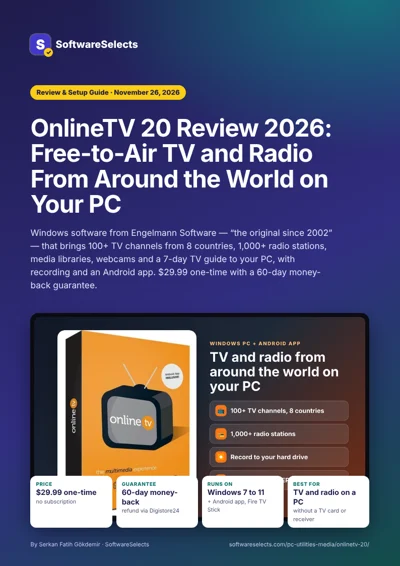
Download the OnlineTV 20 review & setup guide
Everything on this page in a colourful, printable PDF: our verdict, all features, the price, the full installation and Android setup guide, troubleshooting tips and a checklist.
- Verdict & features
- 8-step setup guide
- Android & recording
- Troubleshooting & checklist
About this review
Who wrote it

Serkan Fatih Gökdemir
Founder and Editor, SoftwareSelects
Serkan builds websites, WordPress plugins and online calculator tools himself, so he looks at software the way a working user would. He has also worked for 15 years as a medical laboratory technician, with an education in chemistry, and brings the same habit of checking details carefully to every page: what a product actually does, what it costs, what the refund terms are and who it suits.
Sources: the Digistore24 order form and listing, Engelmann Software’s OnlineTV 20 offer page and troubleshooting notes, and its current OnlineTV product page, checked on November 26, 2026.
Questions about OnlineTV 20?
Tell our assistant which channels and countries you want and which devices you use. It will tell you whether OnlineTV 20 fits.
Details are based on the seller’s website and the Digistore24 listing as of November 26, 2026 and can change — always confirm the price and refund terms at checkout. SoftwareSelects may earn a commission from purchases made through our assistant’s links, at no extra cost to you. Affiliate disclosure
